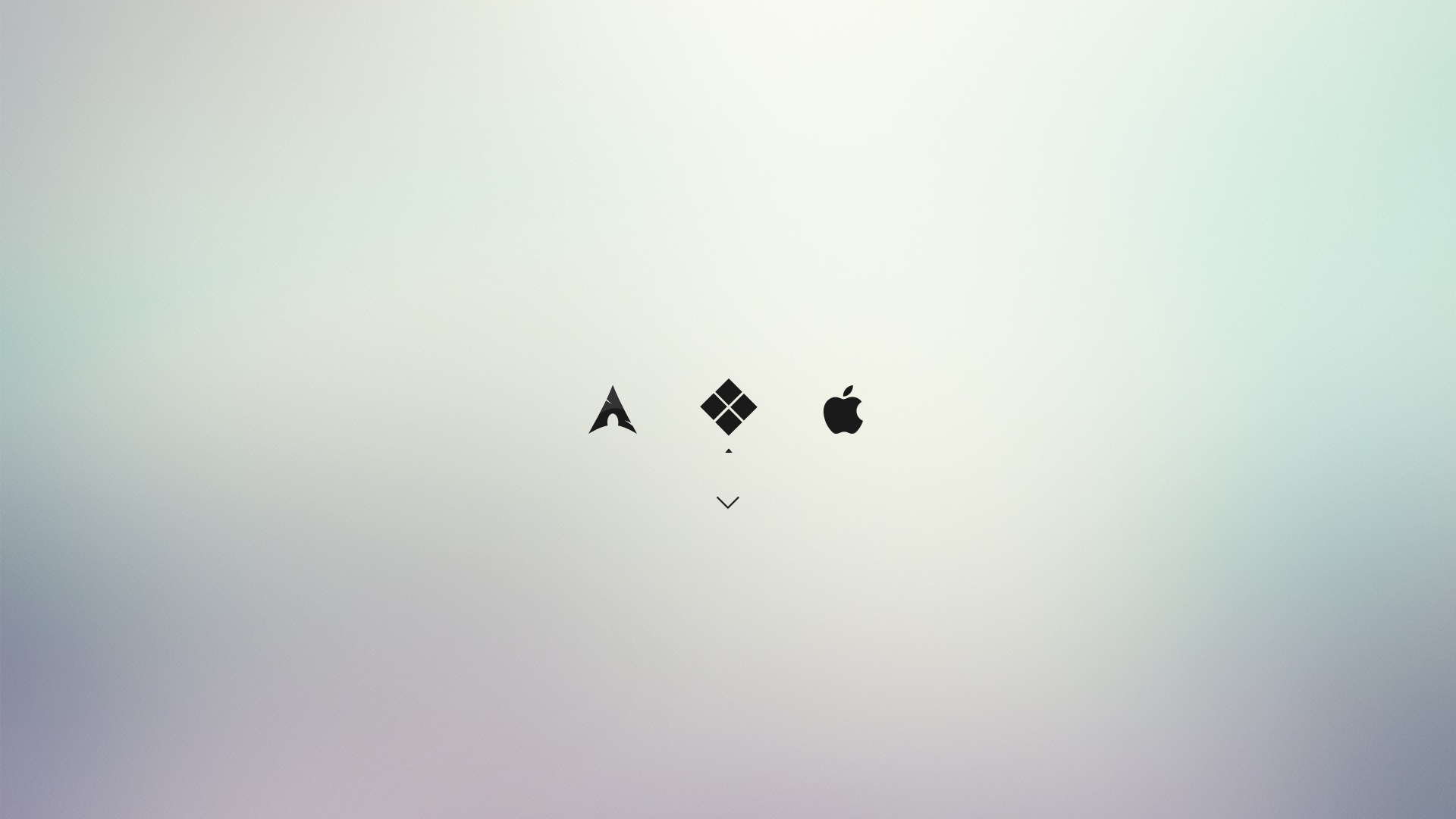
A Guide to rEFInd and Custom Theming
A comprehensive guide to implementing rEFInd in Linux to handle a multi-boot system, featuring custom themes and troubleshooting.
rEFInd in a Linux environment
For anyone maintaining a multi-boot system looking for an alternative to GRUB, the default bootloader, rEFInd is a great choice. rEFInd is a powerful, EFI-based boot manager designed to work on all platforms. It works by dynamically scanning for bootable EFI files instead of simply listing partitions. For developers, it offers a cleaner way to manage kernel paramaters without manual GRUB updates.
In this guide, we will walk through the technical process of installing rEFInd on a Linux-based system, optimizing the configuration for performance, and implementing custom themes to match your personal development environment.
1. Installing rEFInd
Before proceeding, ensure you are booted into a Linux environment and have sudo privileges.
On Arch Linux
sudo pacman -S refind
On Debian/Ubuntu
sudo apt update
sudo apt install refind
Initializing the Boot Manager
After installing the package, you need to install rEFInd to your EFI system partition (ESP):
sudo refind-install
This command automatically detects your ESP, copies the necessary files, and sets rEFInd as the default boot entry in your UEFI firmware.
2. Basic Configuration
The main configuration file is location at /boot/efi/EFI/refind/refind.conf. It is heavily commented, but there are a few key parameters you should know.
Common Adjustments
Open the file with your preferred editor:
sudo nano /boot/efi/EFI/refind/refind.conf
timeout: Set how many seconds to wait before booting the default OS.
timeout 5
resolution: Explicitly set your monitor's native resolution for the sharpest UI.
resolution 1920 1080
scanfor: Defines what rEFInd looks for (internal, external, etc.).
scanfor internal,external,manual
3. Adding Custom themes
Theming is where rEFInd truly shines. To add a custom theme, you generally follow these steps:
Step 1: Create a Themes Directory
sudo mkdir /boot/efi/EFI/refind/themes
Step 2: Download a Theme
Most themes are hosted on GitHub. For example, let's use a popular minimalist theme: https://github.com/evanpurkhiser/rEFInd-minimal.git
cd /boot/efi/EFI/refind/themes
sudo git clone https://github.com/evanpurkhiser/rEFInd-minimal.git
Step 3: Enable the Theme
At the very bottom of your refind.conf file, use the include directive to point to the theme's configuration file:
include themes/rEFInd-minimal/theme.conf
4. Manual Stanza Configuration (Optional)
If rEFInd isn't detecting your kernal paramters correctly, or if you want custom icons for specific entries, you can define a menuentry.
menuentry "Arch Linux" {
    icon     /EFI/refind/themes/rEFInd-minimal/icons/os_arch.png
    loader   /vmlinuz-linux
    initrd   /initramfs-linux.img
    options  "root=PARTUUID=your-uuid-here rw add_efi_memmap"
}
Pro Tip: If you want to hide specific boot options that appear automatically, highlight the entry in the rEFInd menu and press the Delete key (or '-' key). This moves them to a hidden sub-menu.
Troubleshooting Common Issues
Even with a straightforward installation, UEFI environment can vary signficantly between hardware manufacturers. Here are the most common issues with their solutions.
Secure Boot Interference
If you reboot and see a "Security Violation" or find that rEFInd won't launch at all, Secure Boot is likely the culprit.
- The Fix: You can either disable Secure Boot in your BIOS/UEFI settings or use a tool like PreLoader or Shim to sign the rEFInd binary. Most modern Linux distributions provide a signed
shimx64.efithat can be used to launch rEFInd securely.
Missing Drivers for Non-FAT Filesystems
By default, rEFInd can only read the EFI partition (FAT32). If your kernels reside on an ext4, Btrfs, or XFS partition, rEFInd may not "see" them.
- The Fix: rEFInd comes with several filesystems drivers. During installation, you can include them running:
sudo refind-install --usedrivers
Alternatively, manually copy the required .efi driver from /usr/share/refind/drivers_x64/ to /boot/efi/EFI/refind/drivers_x64/
"Ghost" Boot Entries
Sometimes the rEFInd will show multiple icons for the same OS, or display unwanted recovery partitions.
- The Fix: Use the
dont_scan_dirsordont_scan_filesdirectives inrefind.conf:
# Example: Hide the fallback initramfs and a specific directory
dont_scan_files initramfs-linux-fallback.img
dont_scan_dirs /EFI/BOOT, /EFI/Dell
Low-Resolution Graphics
If the theme looks stretched or pixelated, rEFInd might be defaulting to a safe VGA resolution.
- The Fix: Ensure your
refind.confhas theresolutionset to your native display (e.g.,resolution 2560 1440). If it still fails, ensure CSM (Compatibility Support Module) is disabled in your BIOS, as it can interfere with UEFI high-resolution modes.
Additional Resources
To dive deeper into rEFInd's capabilities, check out these official and community-led resources:
- Official rEFInd Documentation - The definitive guide by the creator, Roderick W. Smith
- Arch Wiki: rEFInd - Excellent technical deep-dive and configuration tips
- rEFInd Theme Galley - Visual gallery to preview themes before installing
Conclusion
rEFInd transforms the initial startup from simple text to a polished, professional interface. By combining the include directive for themes with manual stanzas for control, you can create a boot environment that is extremely functional with the appearance you want.